
CC-Switch Setup
Install and configure CC-Switch to manage API providers for CLI coding tools
Overview
CC-Switch is a Windows desktop application that simplifies managing API provider configurations for multiple CLI coding tools, including Claude Code, Codex, Gemini CLI, OpenClaw, and OpenCode. Instead of manually setting environment variables for each tool every time you want to switch providers, CC-Switch gives you a visual interface to configure, save, and switch between API providers with a few clicks.
If you use multiple coding tools or frequently switch between API providers (such as OpenModel, official APIs, or other gateways), CC-Switch lets you manage all of these configurations from a single interface.
Prerequisites
- OpenModel API key -- If you don't have one yet, follow the Authentication guide to create your API key.
- Windows PC -- CC-Switch currently provides an
.msiinstaller for Windows only.
Install CC-Switch
Download the Installer
Go to the CC-Switch Releases page on GitHub. Find the latest release, click "Show all assets" at the bottom of the release notes to expand the full asset list, then download the .msi installer file that matches your system architecture.
Tip
If the download from GitHub is slow in your region, try using a download accelerator, a VPN, or a GitHub mirror/proxy service.
Run the Installer
Double-click the downloaded .msi file and follow the setup wizard to complete the installation. Accept the default settings unless you have a specific reason to change them.
Tip
On some systems, Windows Defender SmartScreen may show a warning because the application is not widely recognized yet. If you trust the source, click "More info" and then "Run anyway" to proceed.
Launch CC-Switch
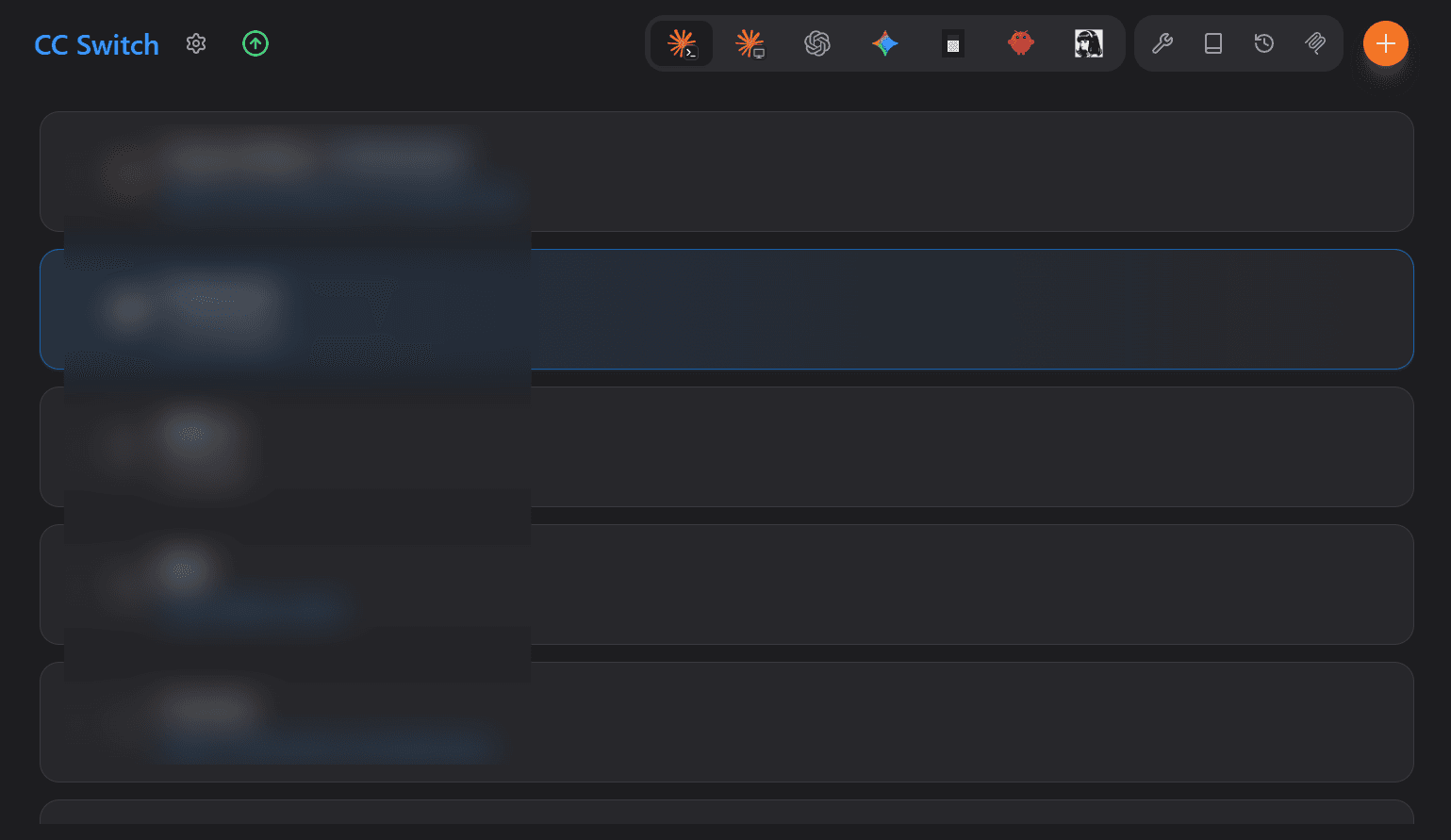
After installation, launch CC-Switch from the Start menu or desktop shortcut. You should see the main interface:
Interface Overview
The CC-Switch interface is organized around a few key elements:
- Tool Tabs (top-right area) -- The tabs at the top let you switch between configurations for different coding tools (Claude Code, Codex, Gemini CLI, OpenClaw, OpenCode). Each tool has its own independent set of provider configurations.
- Add Button (orange button, top-right corner) -- Click the orange "Add" button to create a new provider configuration for the currently selected tool.
- Provider List (main area) -- The main content area shows all saved provider configurations for the selected tool. Each entry displays the provider name, API URL, and key details at a glance.
General Workflow
- Select a tool tab -- Click the tab for the coding tool you want to configure (e.g., Claude Code).
- Click Add -- Click the orange "Add" button to create a new provider entry.
- Fill in provider details -- Enter the API Base URL (e.g.,
https://api.openmodel.ai), your API key, and any model mappings required by the tool. - Save and apply -- Save the configuration. CC-Switch will set the necessary environment variables for your selected tool.
Tip
You can create multiple provider configurations for the same tool (e.g., one for OpenModel and one for a direct provider) and switch between them without re-entering credentials each time.
Next Steps
Once CC-Switch is installed, follow the specific integration guide for each coding tool you want to configure:
- Claude Code -- Configure Claude Code to use OpenModel as its API provider
- Codex -- Configure Codex to use OpenModel as its API provider
- Gemini CLI -- Configure Gemini CLI to use OpenModel as its API provider
- OpenClaw -- Configure OpenClaw to use OpenModel as its API provider
- OpenCode -- Configure OpenCode to use OpenModel as its API provider