
OpenCode
Configure OpenCode to use OpenModel as its API provider via CC-Switch
Overview
OpenCode is an AI-powered coding tool that brings large language model capabilities directly into your development workflow. It can assist with code generation, refactoring, debugging, and answering technical questions -- all from within your terminal or editor environment.
By routing OpenCode through OpenModel, you gain access to a wide range of models -- including GPT, Claude, Gemini, DeepSeek, and more -- from a single API endpoint. This means you can switch between models without managing separate API keys or provider configurations for each one.
This guide walks you through configuring OpenCode to use OpenModel as its API provider, using CC-Switch to inject the correct configuration automatically.
Prerequisites
Before you begin, make sure you have:
- An OpenModel API key -- Create one in the OpenModel Console. See Authentication for detailed instructions.
- CC-Switch installed and running -- CC-Switch is required to inject the API configuration into OpenCode. If you have not installed it yet, follow the CC-Switch Setup guide first.
- Windows PC -- Both CC-Switch and this workflow are currently Windows-only.
- An internet connection -- Required for downloading OpenCode and making API calls.
Install OpenCode
Visit the OpenCode download page and download the installer for your system.
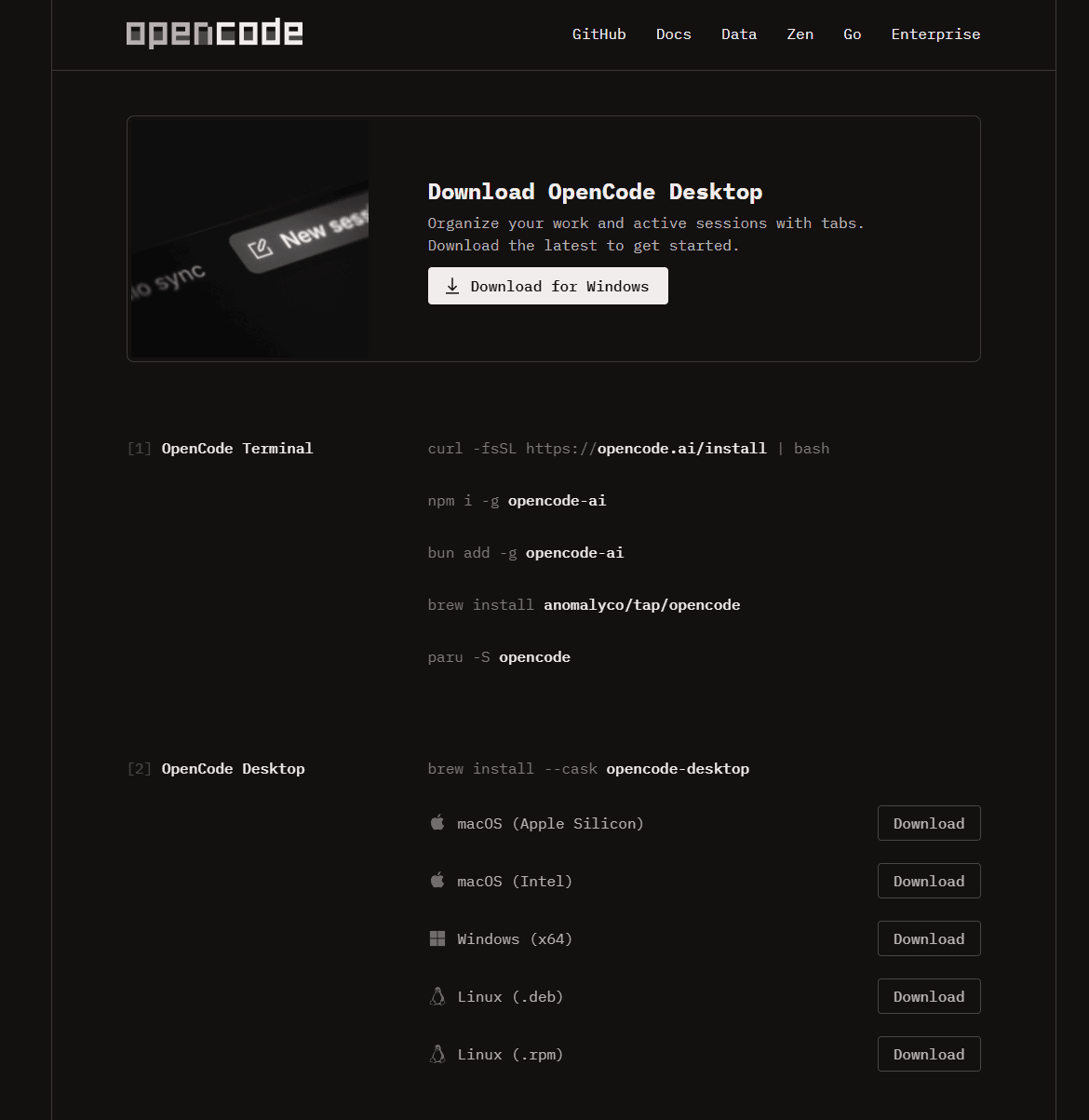
Run the downloaded installer and follow the on-screen prompts to complete installation.
Important
Do not launch OpenCode after installation. Close the installer when it finishes, but do not open OpenCode yet. CC-Switch needs to inject the provider configuration before OpenCode starts for the first time. If OpenCode launches before the configuration is in place, it will initialize with default settings and may not pick up the injected configuration correctly. If you accidentally opened it, close OpenCode completely before proceeding to the next step.
Configure CC-Switch for OpenCode
Open CC-Switch (if it is not already running). In the top-right area of the CC-Switch window, click the OpenCode tab to switch to the OpenCode configuration view. Then click the orange Add button to create a new provider configuration.
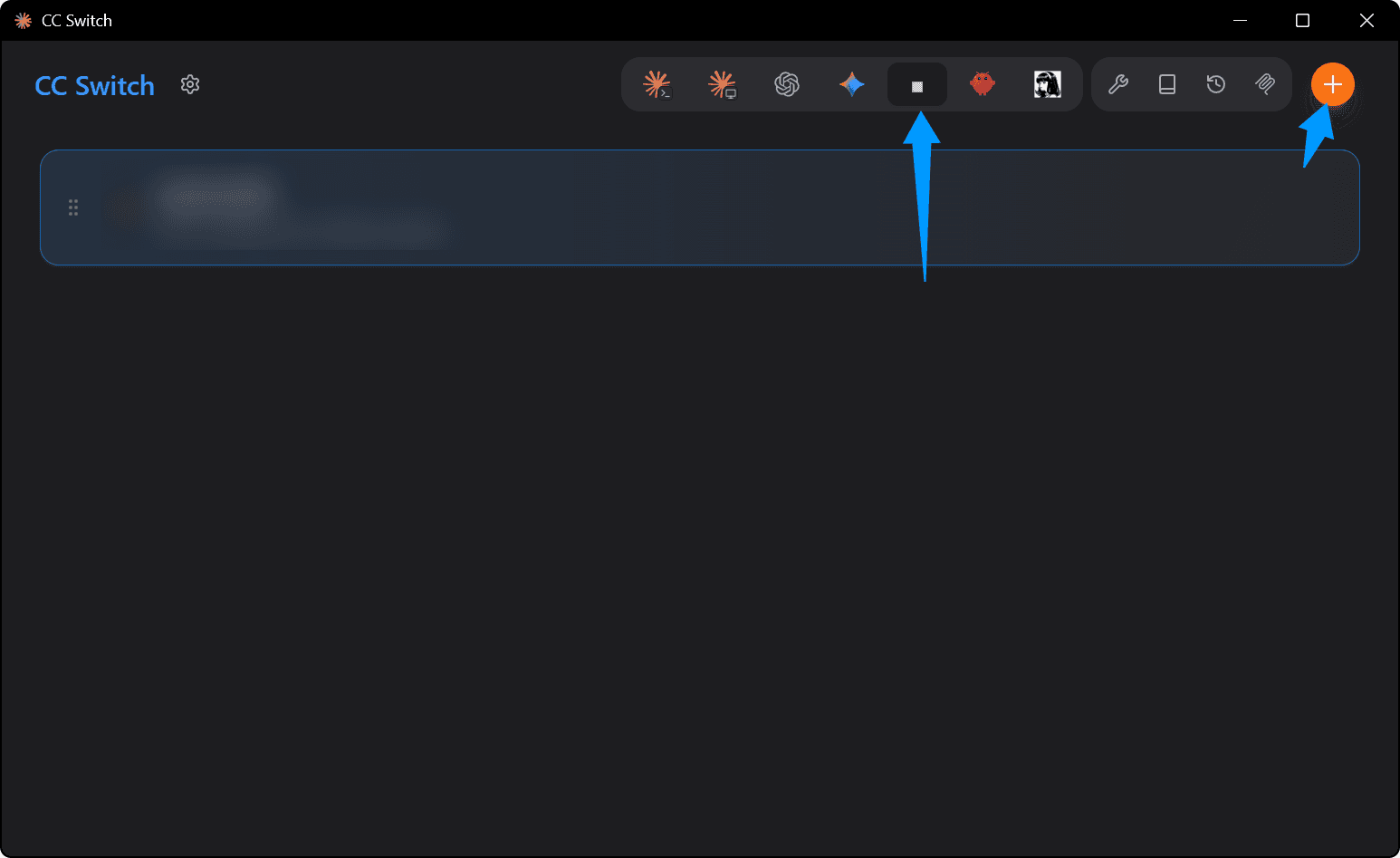
Fill in Provider Details
A configuration form will appear. Fill in the following fields:
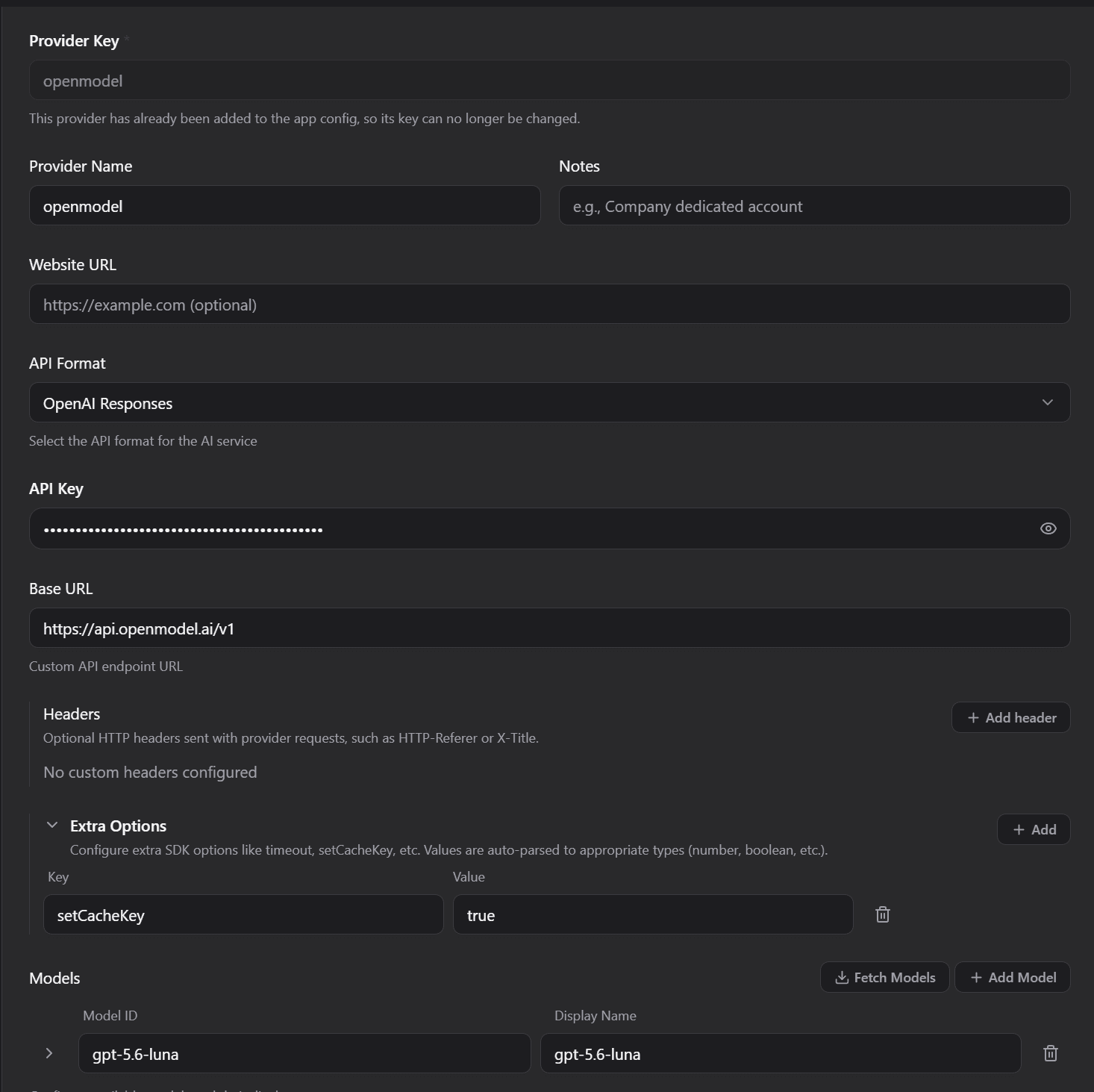
- API Key: Paste your OpenModel API key (starts with
om-). You can find or create one at console.openmodel.ai. - Models: Enter the model names you want to use. You can customize this list based on your needs. For available model names and pricing, see Model Pricing.
- API Format: This is the most important setting. Different model families require different API formats:
| API Format | When to Use | Example Models |
|---|---|---|
| OpenAI Responses | For OpenAI models only | gpt-5.4, gpt-5.4-mini, o3, o4-mini |
| Anthropic | For Claude models | claude-opus-4-6, claude-sonnet-4-6, claude-haiku-4-5-20251001 |
| Google AI | For Gemini models | gemini-3.5-flash, gemini-3.1-pro-preview |
Critical
Choosing the wrong API Format will cause errors. For example, if you set the API Format to "OpenAI Responses" and then try to use a Claude or Gemini model, the API call will fail because those models expect a different request format. If you need to use models from multiple families (e.g., both GPT and Claude), you must create separate provider configurations in CC-Switch -- one for each API Format.
Tip
If you are unsure which format a model requires, check the Available Models page. As a general rule: OpenAI models (GPT, o-series) use "OpenAI Responses", Claude models use "Anthropic", and Gemini models use "Google AI".
Save and Inject Configuration
After filling in all the fields, click Save to store the configuration. Then click the Add button (or the inject/apply button) to inject the configuration into OpenCode.

CC-Switch will set the necessary environment variables and configuration files so that OpenCode knows to route API calls through OpenModel. You should see a confirmation that the configuration has been applied successfully.
Tip
You can create multiple provider configurations (e.g., one for OpenAI models and one for Claude models) and switch between them later without re-entering your API key each time.
Launch OpenCode and Select a Model
Now you can open OpenCode. Navigate to your project directory, then look for the model selector in the OpenCode interface. Switch to one of the models you configured in Step 3.
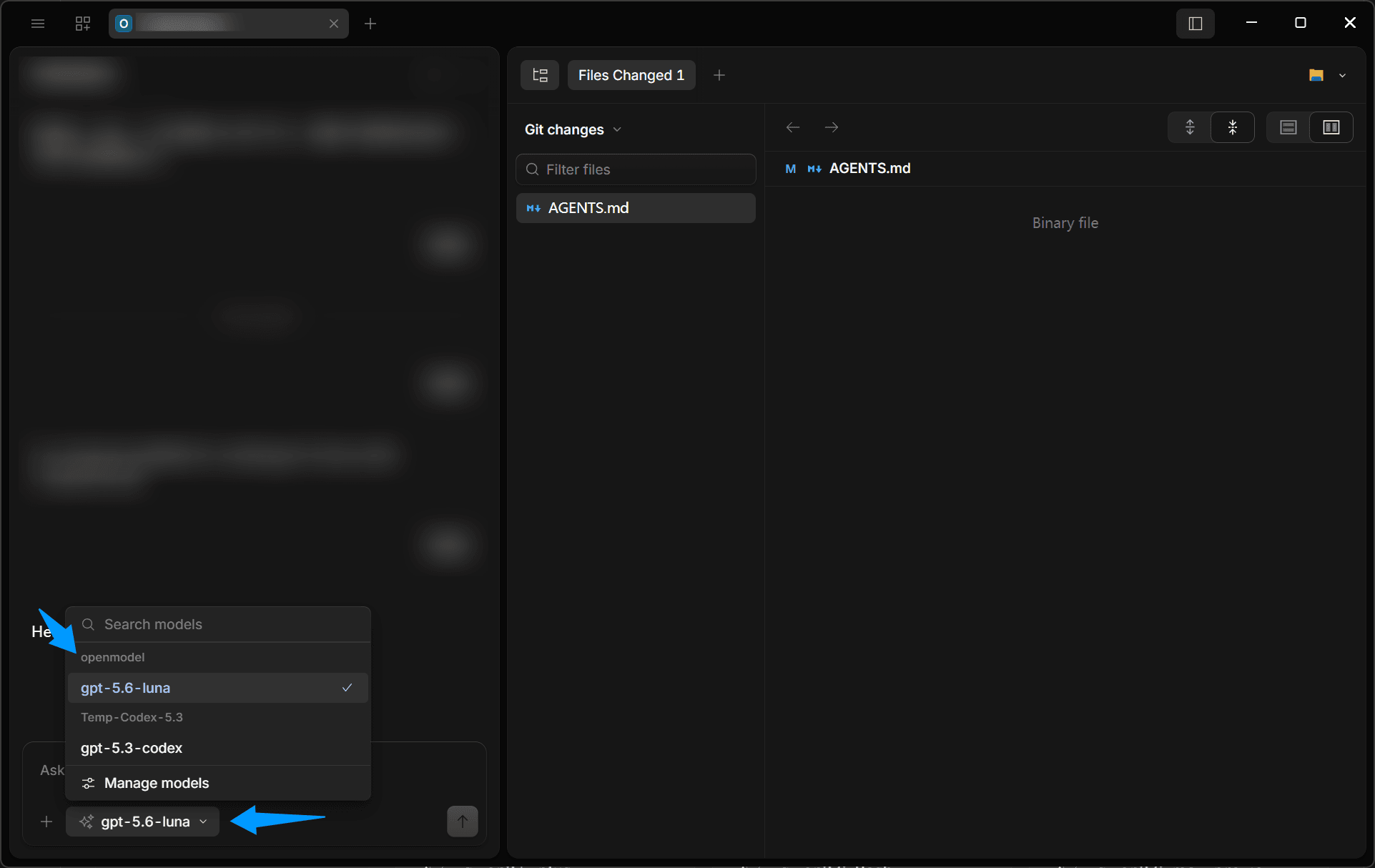
If you configured multiple models, you can switch between them at any time using the model selector.
Verify Configuration
Send a test message to verify everything is working. Type a simple prompt -- for example, "Hello, explain what this project does" -- and press Enter. If you receive a response from the model, your configuration is complete.
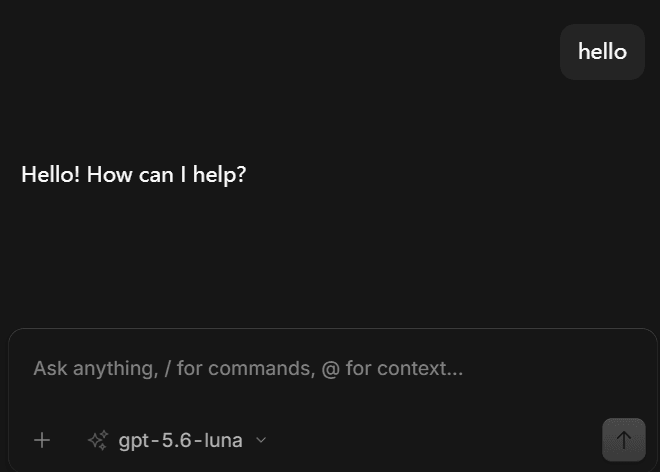
OpenCode is now connected to OpenModel. You can start using AI-assisted coding with any of the models you configured.
Troubleshooting
OpenCode does not show the configured models
- Make sure you completed Step 4 (injecting the configuration) before launching OpenCode.
- If you opened OpenCode before injecting the configuration, close OpenCode completely, inject the configuration in CC-Switch, and then relaunch OpenCode.
- Verify that CC-Switch shows a success message after injecting the configuration.
API call fails with an error
- Check the API Format. This is the most common cause of errors. Make sure the API Format matches the model family you are using:
- OpenAI models (GPT, o-series) require OpenAI Responses format.
- Claude models require Anthropic format.
- Gemini models require Google AI format.
- If you changed the API Format, you may need to re-inject the configuration and restart OpenCode.
401 Unauthorized error
- Double-check that your API key is correct and starts with
om-. - Make sure you copied the full key without extra spaces or missing characters.
- Verify the key has not expired in the OpenModel Console.
Model responds but output seems wrong or truncated
- Try adjusting model parameters like
max_tokensortemperatureif OpenCode exposes those settings. - Check your account's rate limits and billing status to ensure you have sufficient quota.
Want to use models from multiple families?
You need to create separate provider configurations in CC-Switch -- one for each API Format. For example:
- One provider with OpenAI Responses format for GPT models (
gpt-5.4,o4-mini, etc.) - One provider with Anthropic format for Claude models (
claude-sonnet-4-6, etc.) - One provider with Google AI format for Gemini models (
gemini-3.5-flash, etc.)
Switch between them in CC-Switch, re-inject the configuration, and restart OpenCode to apply the change.
Next Steps
- Available Models -- Browse all supported providers and model names
- Model Pricing -- Compare pricing across all available models
- Rate Limits -- Understand usage limits and quotas
- CC-Switch Setup -- Learn more about managing provider configurations