
Claude Code
Configure Claude Code to use OpenModel as its API provider via CC-Switch
Overview
Claude Code is Anthropic's official CLI-based AI coding assistant that runs directly in your terminal, understands your project context, and helps you write, debug, refactor, and reason about code through natural language conversations. Claude Code can read and edit files, run commands, search your codebase, and interact with tools -- all within a terminal interface.
By routing Claude Code through OpenModel, you can:
- Access multiple AI models -- Use Claude, GPT-4o, DeepSeek, Gemini, and other models through a single API key, without needing separate accounts for each provider.
- Manage usage centrally -- Track and control API spending across all your tools from the OpenModel Console.
- Simplify configuration -- Use CC-Switch to switch providers without manually editing environment variables each time.
This guide walks you through the complete setup process, from configuring CC-Switch to launching Claude Code with OpenModel as the backend.
Client benefits
Selected models may offer Claude Code-specific availability or pricing. Complete this setup and use Claude Code normally; eligible benefits are applied automatically. See Client Benefits for details.
Prerequisites
Before you begin, make sure you have:
- OpenModel API key -- You need an active API key from OpenModel. If you don't have one yet, follow the Authentication guide to create your API key.
- CC-Switch installed and running -- CC-Switch is used to configure API providers for Claude Code. If you haven't installed it yet, follow the CC-Switch Setup guide first.
- Node.js (v18 or later) -- Claude Code requires Node.js to run. If you don't have Node.js installed, download it from nodejs.org and install the LTS version for your operating system.
How to check if Node.js is installed
Open a terminal and run node --version. If you see a version number (e.g., v20.15.0), Node.js is already installed. If you get an error like 'node' is not recognized, you need to install it first.
Configure CC-Switch for Claude Code
This section covers how to add OpenModel as the API provider for Claude Code in CC-Switch.
Open CC-Switch and Add a New Provider
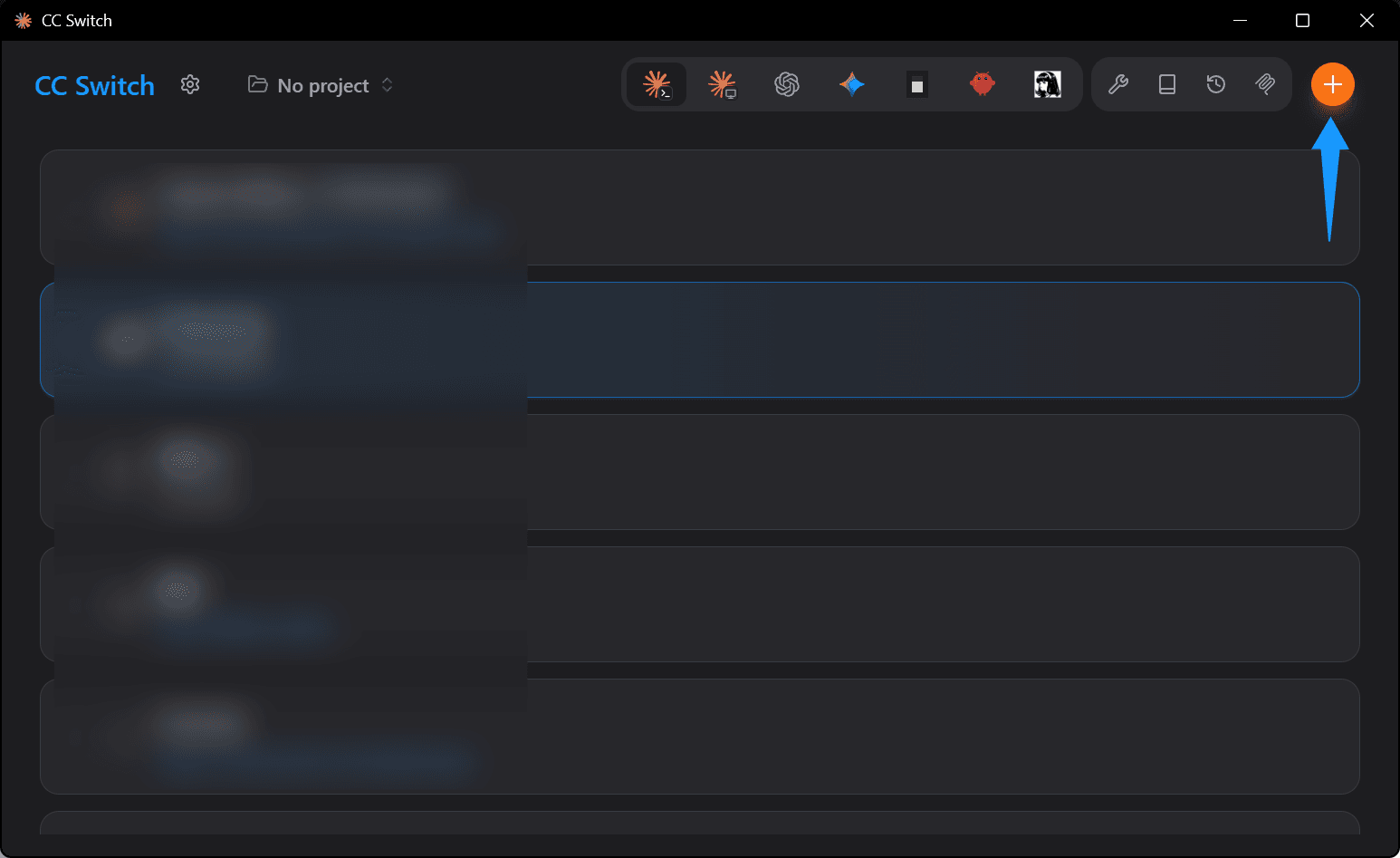
Launch CC-Switch. In the top-right area, click the Claude Code tab to switch to the Claude Code provider configuration view. Then click the orange Add button in the top-right corner to create a new provider entry.
Configure the Provider Settings
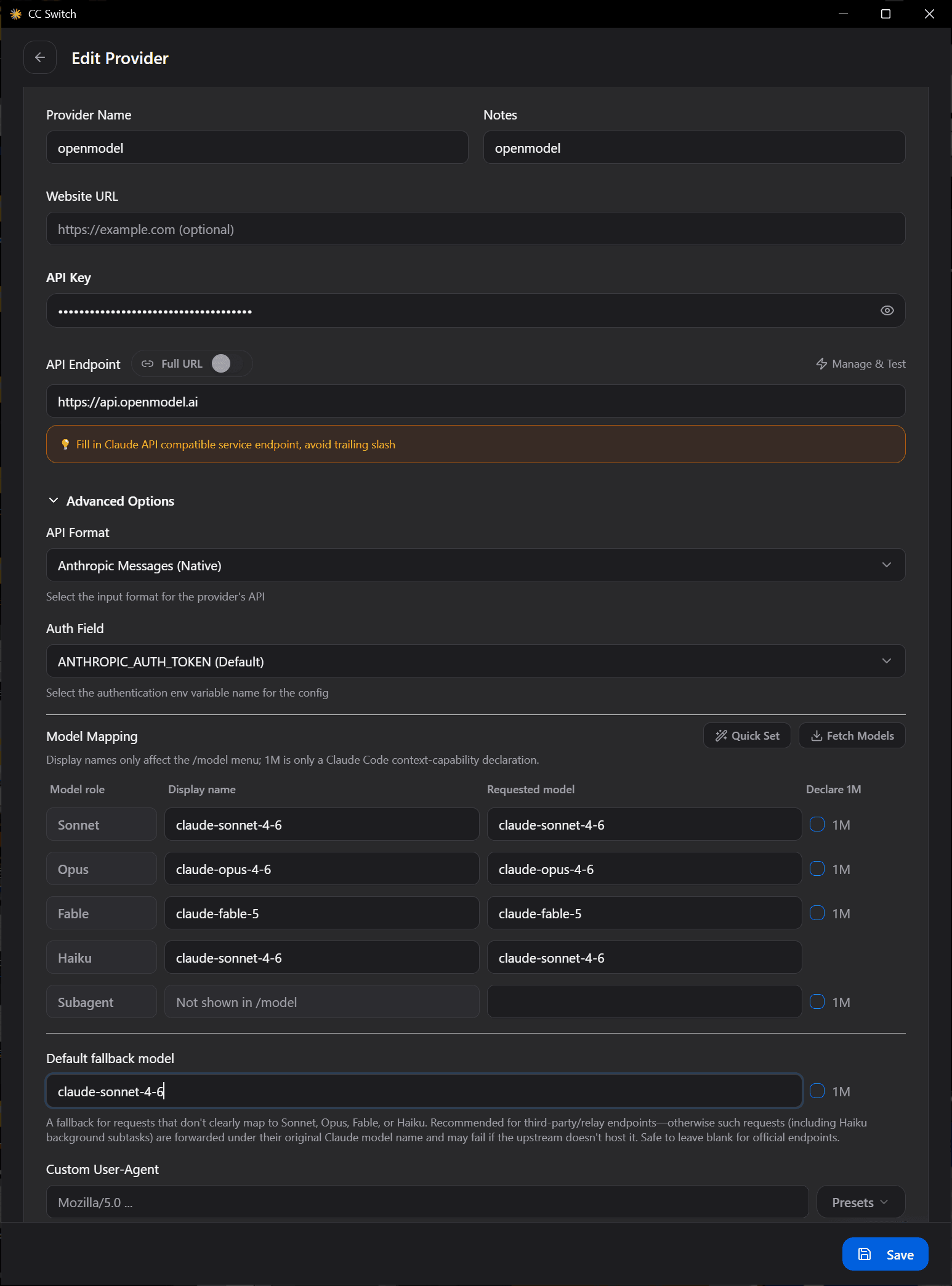
In the Add New Provider page, scroll down to the editor section. Fill in the following fields:
- API Base URL -- Enter the OpenModel API endpoint. For Claude Code (which uses the Anthropic Messages API format), use:
https://api.openmodel.ai - API Key -- Enter your OpenModel API key (the key starting with
om-that you created in the Authentication guide). - Model Mapping -- This controls which model Claude Code will use when making requests. You can customize this mapping based on the models you want to use. For example, you might map
claude-sonnet-4-6to the same model name, or map it to a different model available through OpenModel. See Available Models for the full list of supported models.
After filling in all fields, click the blue Save button at the bottom to save your configuration.
Tip
Double-check that your API key is entered correctly. A common mistake is accidentally including extra spaces before or after the key when pasting.
Understanding the Configuration Fields
| Field | Description | Example Value |
|---|---|---|
| API Base URL | The OpenModel API endpoint that Claude Code will send requests to | https://api.openmodel.ai |
| API Key | Your personal OpenModel API key for authentication | om-your-api-key |
| Model Mapping | Maps model names to specific models available through OpenModel | Customizable per your needs |
Install Claude Code
If you don't have Claude Code installed yet, follow the official installation guide:
- Visit the Claude Code Quickstart page in the official documentation.
- Follow the instructions for your operating system. The typical installation command is:
npm install -g @anthropic-ai/claude-codeNote
You need Node.js v18 or later installed before running this command. If npm is not recognized, make sure Node.js is installed and your terminal has been restarted after installation.
After installation, verify that Claude Code is available by running:
claude --versionIf you see a version number in the output, Claude Code has been installed successfully.
Launch Claude Code
With CC-Switch configured and Claude Code installed, you're ready to start using it.
Open a Terminal in Your Project Folder
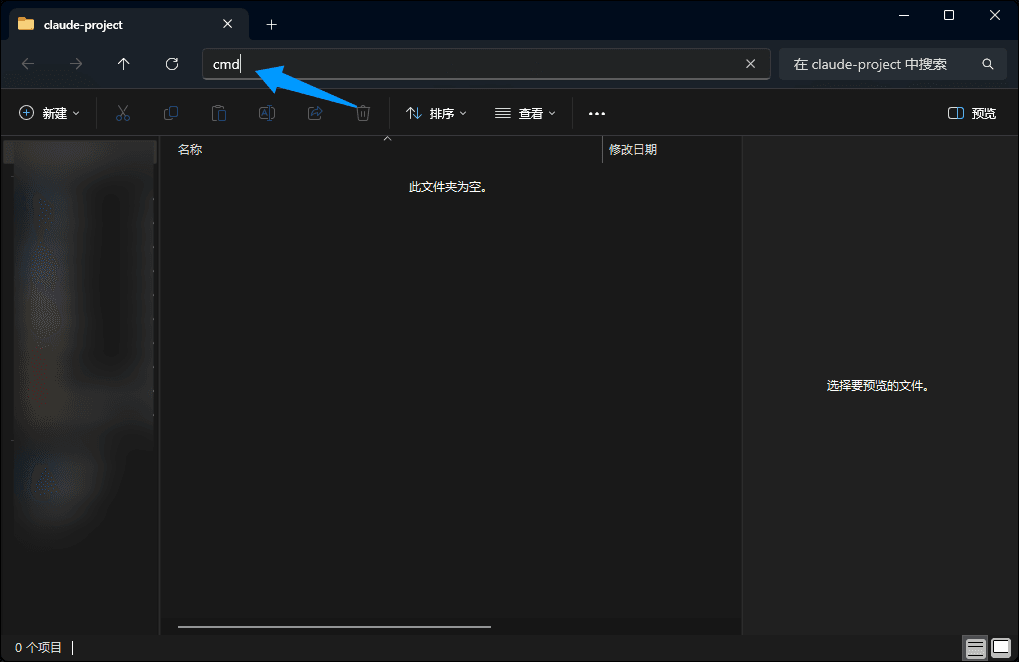
Navigate to the project folder you want to work with, then open a command prompt (CMD) or terminal in that directory. On Windows, you can right-click in the folder and select "Open in Terminal", or type cmd in the address bar of File Explorer and press Enter.
Verify Configuration
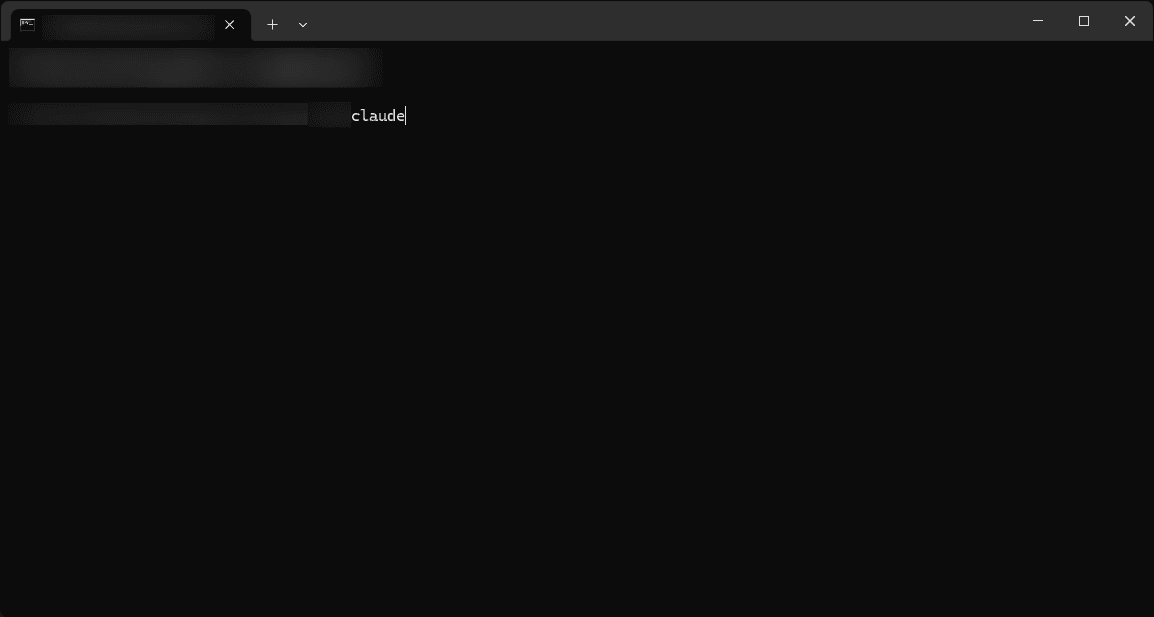
If everything is configured correctly, Claude Code will start up and display its interactive interface. You should see the Claude Code prompt ready to accept your input, as shown below:
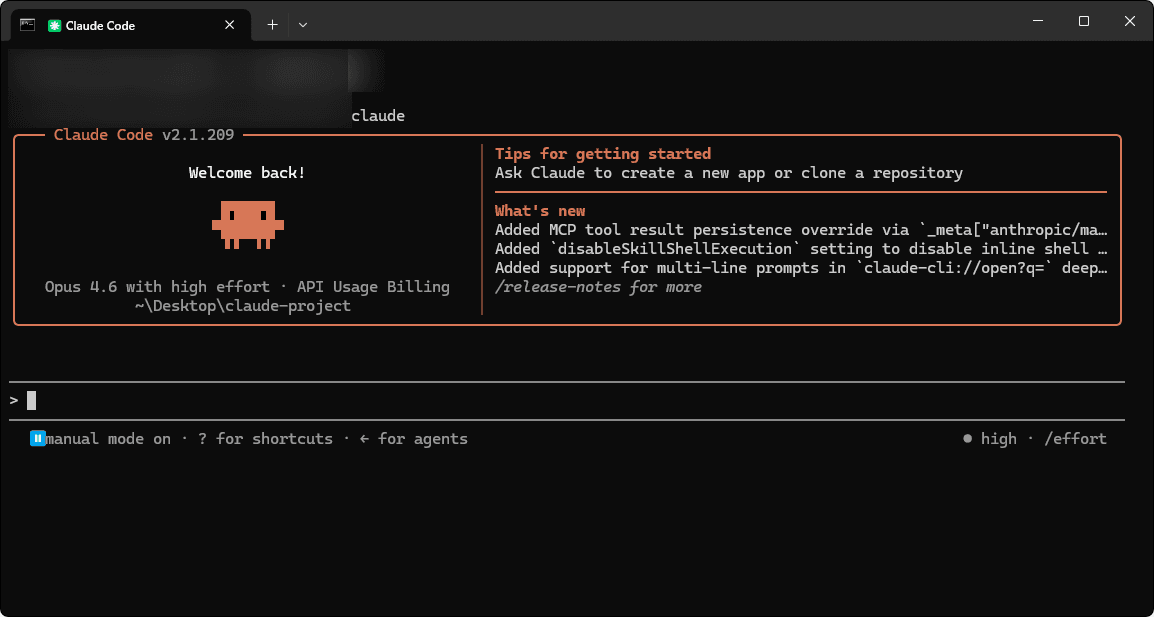
You can now start chatting with Claude Code. Try asking it to explain your project structure, find a bug, or write some code.
Troubleshooting
If you run into issues, check the following common problems and solutions:
CC-Switch Is Not Running
Symptom: Claude Code fails to connect or shows authentication errors even though your API key is correct.
Solution: Make sure CC-Switch is running in the background. CC-Switch needs to be active to set the correct environment variables for Claude Code. Launch CC-Switch from the Start menu if it's not running, and make sure the Claude Code provider configuration is saved and active.
Wrong or Missing API Key
Symptom: Claude Code shows 401 Unauthorized or Invalid API key errors.
Solution:
- Open CC-Switch and navigate to the Claude Code tab.
- Verify that your API key is entered correctly (starting with
om-). - Make sure the API key has not expired. You can check its status in the OpenModel Console.
- If the key looks correct, try creating a new one and updating the CC-Switch configuration.
Node.js Not Installed or Outdated
Symptom: Running claude in the terminal gives an error like 'claude' is not recognized as an internal or external command or node: command not found.
Solution:
- Install Node.js v18 or later from nodejs.org.
- After installation, close and reopen your terminal so the system PATH is updated.
- Verify with
node --versionand then reinstall Claude Code withnpm install -g @anthropic-ai/claude-code.
Model Not Available
Symptom: Claude Code returns errors like Model not found or The requested model is not available.
Solution:
- Check the Available Models page to confirm the model name is correct and supported by OpenModel.
- Open CC-Switch and review the Model Mapping in your Claude Code provider configuration. Make sure the mapped model names match exactly with the models listed in the OpenModel documentation.
- If you recently changed the model mapping, restart Claude Code for the changes to take effect.
Connection Timeout or Network Errors
Symptom: Claude Code takes a long time and then shows a timeout or connection error.
Solution:
- Verify that you can reach
https://api.openmodel.aifrom your network (try opening it in a browser). - Check if a firewall or proxy is blocking the connection.
- Make sure the API Base URL in CC-Switch is set to
https://api.openmodel.ai(with no trailing slash or extra characters).
Next Steps
Now that Claude Code is set up with OpenModel, here are some things you can explore:
- Available Models -- Browse all supported providers and models to find the best one for your coding tasks
- Claude Code Official Documentation -- Learn about advanced Claude Code features like slash commands, MCP servers, and project context
- Codex -- Set up OpenAI's Codex CLI as another coding tool through OpenModel
- Gemini CLI -- Configure Google's Gemini CLI with OpenModel
- Billing -- Understand how API usage is billed and manage your spending