
Cherry Studio
Configure Cherry Studio to use OpenModel as an API provider
Overview
Cherry Studio is a popular cross-platform desktop AI client that supports Windows, macOS, and Linux. It provides a polished chat interface with features like conversation management, multi-model switching, and prompt templates. By configuring OpenModel as a custom provider in Cherry Studio, you can access all models available on OpenModel -- including GPT, Claude, Gemini, DeepSeek, and more -- from a single desktop application.
Prerequisites
Before you begin, make sure you have:
- An OpenModel API key -- Create one in the OpenModel Console. See Authentication for detailed instructions.
- A supported operating system -- Windows 10+, macOS 11+, or a modern Linux distribution (Ubuntu 20.04+, Fedora 36+, etc.).
- An internet connection -- Required for both downloading Cherry Studio and making API calls.
Install Cherry Studio
Visit the official Cherry Studio website at cherry-ai.com and download the installer for your operating system.
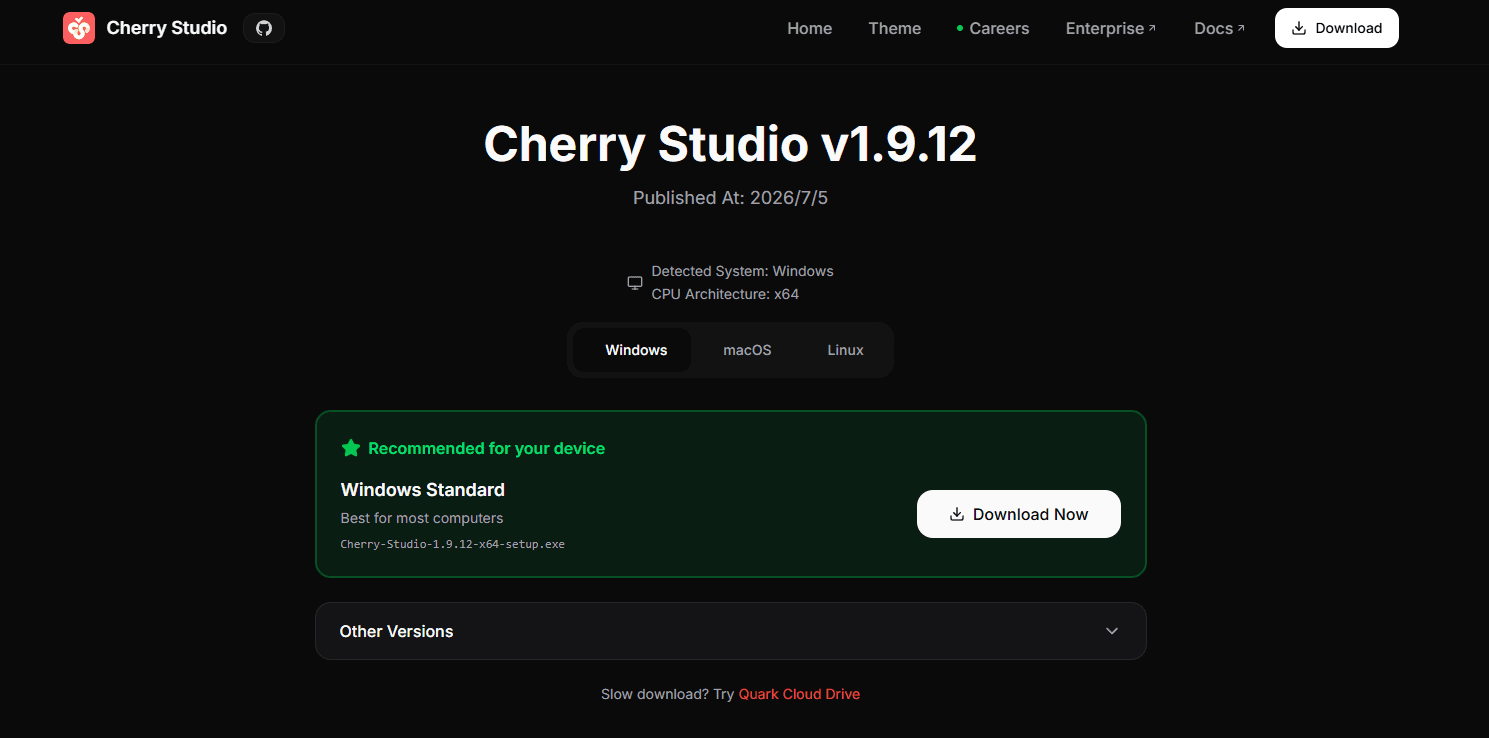
Choose the appropriate version:
- Windows: Download the
.exeinstaller and run it. Follow the on-screen prompts to complete installation. - macOS: Download the
.dmgfile, open it, and drag Cherry Studio to your Applications folder. - Linux: Download the
.AppImageor.debpackage depending on your distribution.
Tip
If your browser or OS warns about the download being from an unverified publisher, this is normal for community-developed desktop applications. You can proceed with the installation safely.
After installation, launch Cherry Studio. You should see the main chat interface.
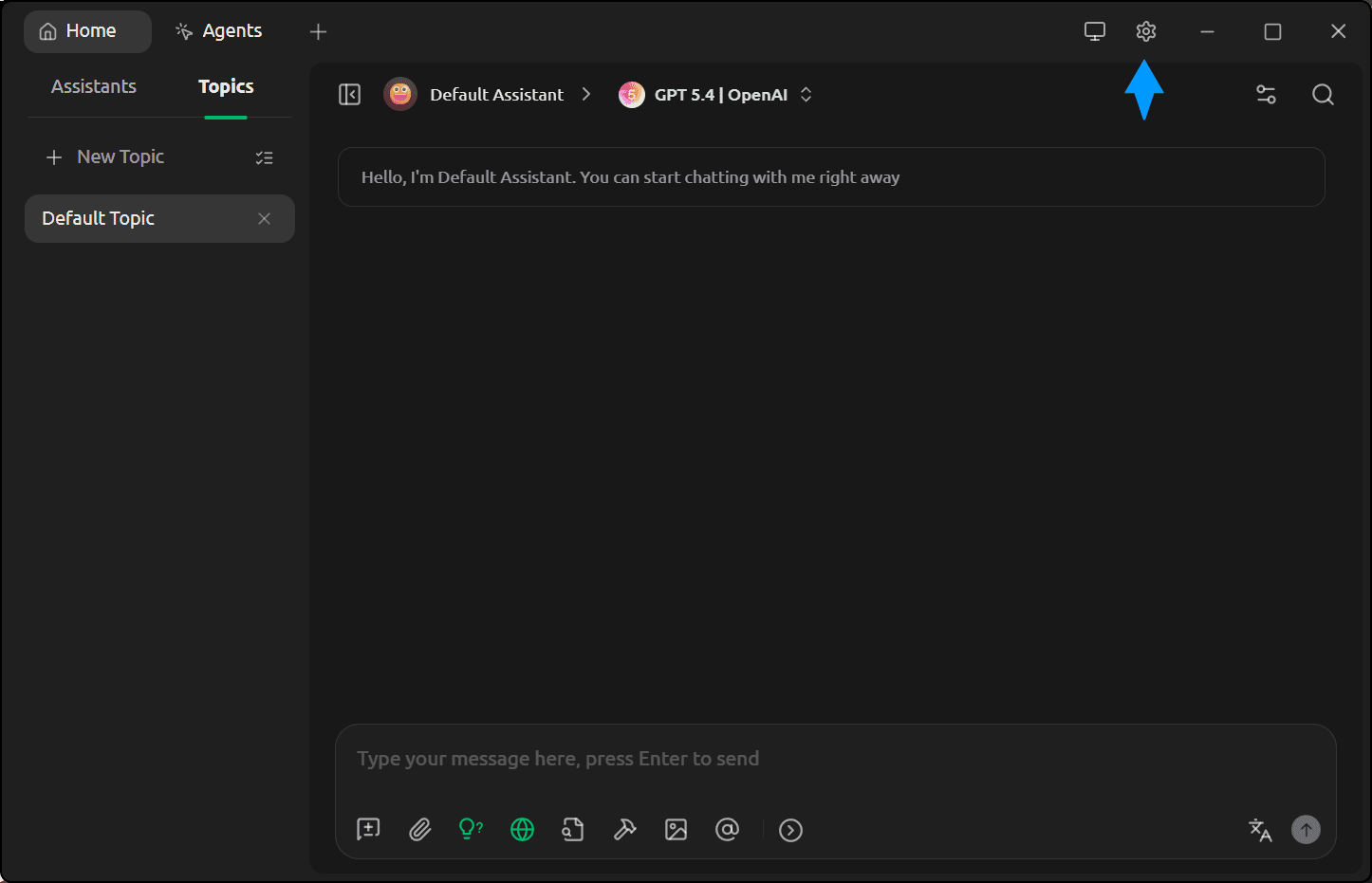
Open Settings
Click the settings icon (gear icon) in the bottom-left corner of the Cherry Studio window to open the settings panel.
Add a New Model Platform
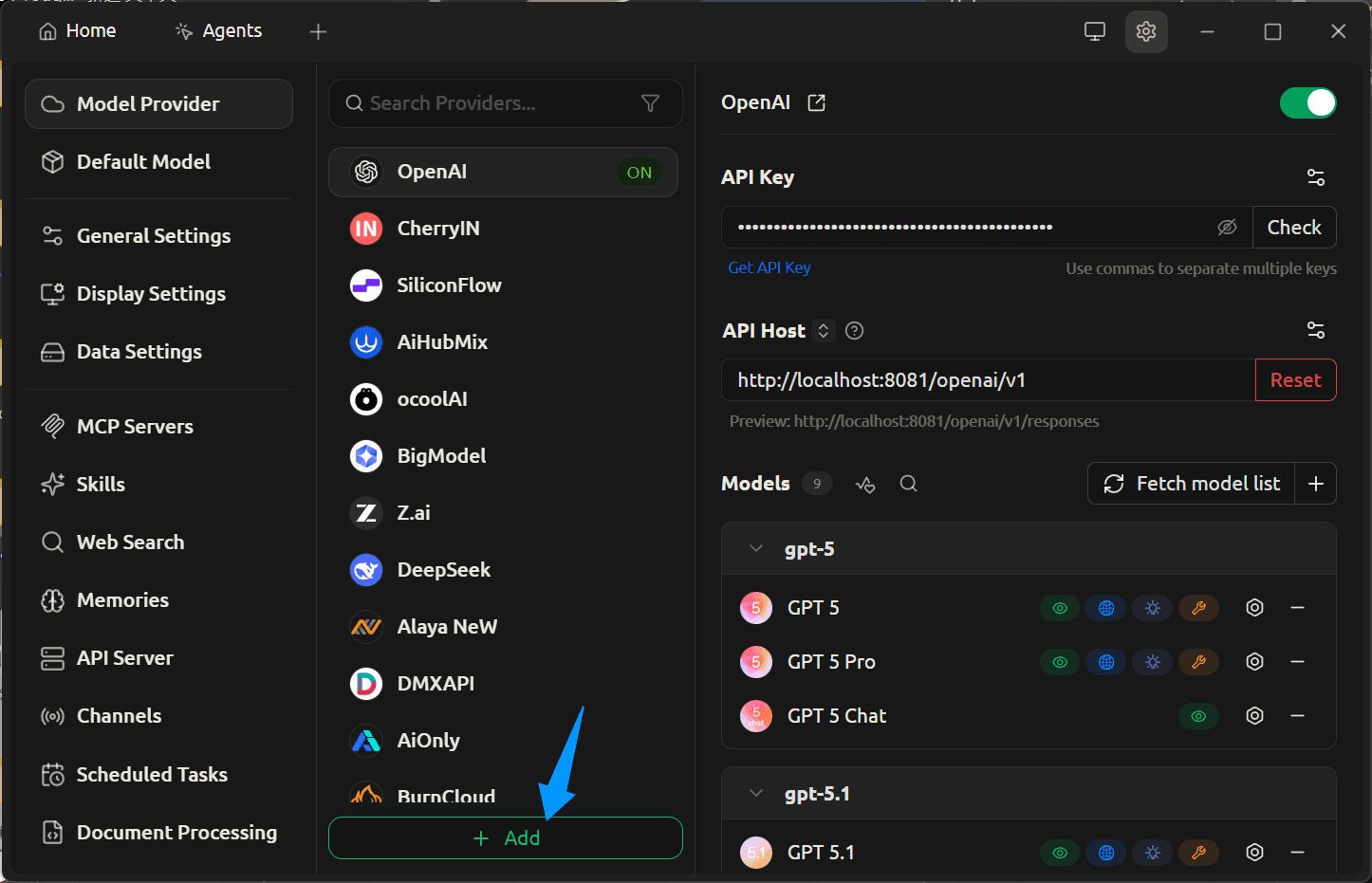
In the settings panel, navigate to the Model Platform section. Scroll to the bottom of the provider list and click the Add button to add a new custom provider.
Choose the Correct Protocol
Cherry Studio supports multiple API protocols. You need to choose the protocol that matches the model you want to use:
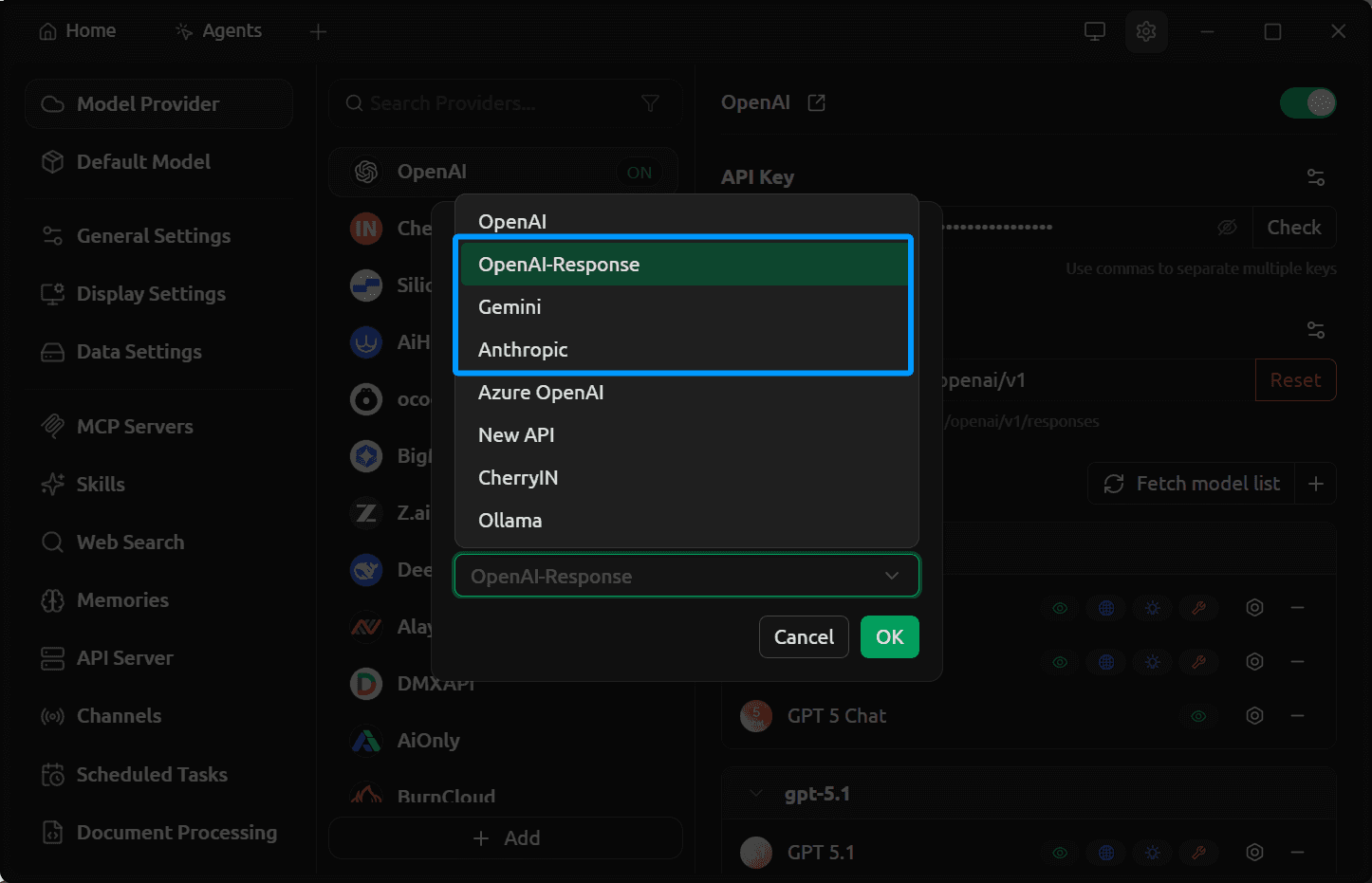
| Protocol | When to Use | Example Models |
|---|---|---|
| OpenAI-Response | For OpenAI models | gpt-5.4, gpt-5.4-mini, o4-mini |
| Anthropic | For Claude models | claude-opus-4-6, claude-sonnet-4-6, claude-haiku-4-5-20251001 |
Important
Choosing the wrong protocol will result in errors when you try to chat. If you want to use models from both OpenAI and Anthropic, you need to add two separate providers -- one for each protocol. For a complete mapping of models to protocols, see Available Models.
Configure OpenModel Connection
After selecting the protocol, configure the connection details for OpenModel:
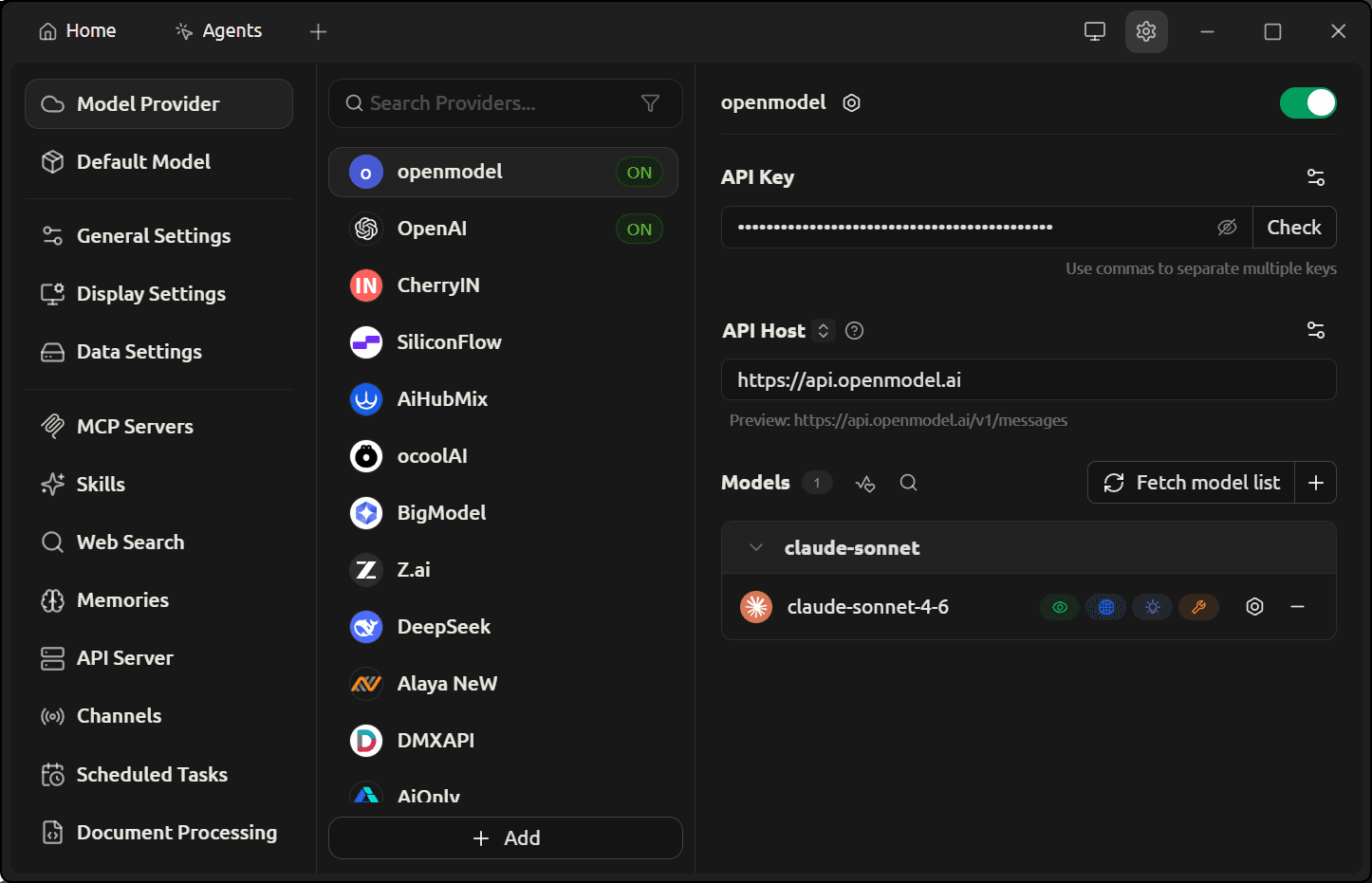
Fill in the following fields:
- Platform Name: Choose a name you will recognize, such as
OpenModelorOpenModel-Anthropic. - API URL: Enter the OpenModel API endpoint:
https://api.openmodel.ai - API Key: Paste your OpenModel API key (starts with
om-). You can create one at console.openmodel.ai. - Add Models: Manually type the model names you want to use and add them. For example:
claude-sonnet-4-6,gpt-5.4,deepseek-v4-flash. You can find all available model names on the Model Pricing.
Disable Unsupported Capabilities
Some models do not support certain capabilities like WebSearch. If you leave these enabled, the API call may fail with an error. To avoid this:
- Click More Settings (or the advanced settings area) for the model.
- Uncheck WebSearch and any other capabilities that the model does not support.
- Click Save to confirm your settings.
401 Unauthorized Error
If you get a 401 error when testing the connection:
- Double-check that your API key is correct and starts with
om-. - Make sure you copied the full key without extra spaces.
- Verify the key has not expired in the Console.
404 Not Found Error
If you get a 404 error:
- Make sure the API URL is exactly
https://api.openmodel.ai(no trailing slash, no/v1suffix -- Cherry Studio adds the path automatically). - Verify the model name is spelled correctly. Model names are case-sensitive.
Start a New Conversation
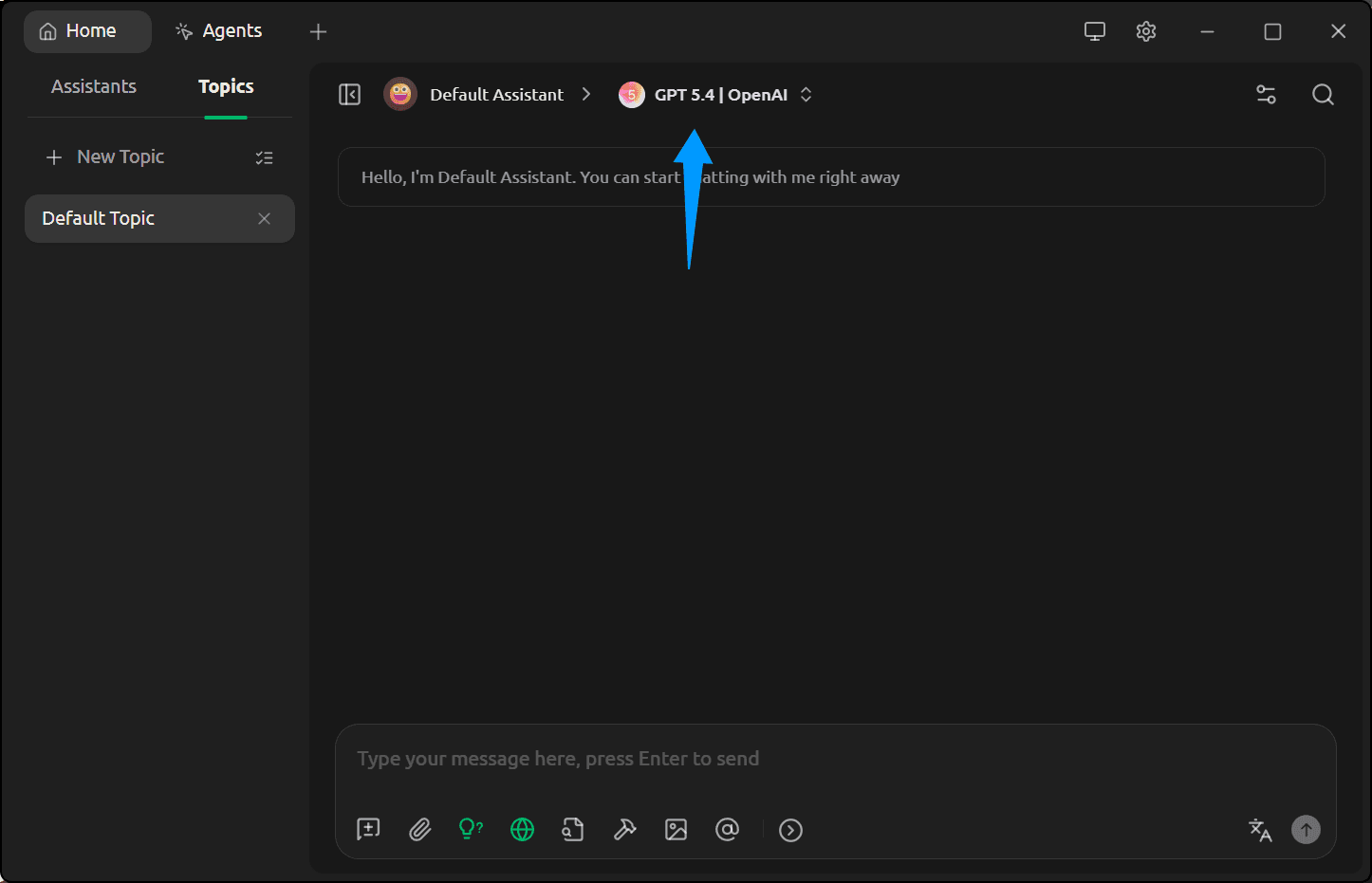
Go back to the Home screen by clicking the chat icon. Create a new topic, then click the model switcher at the top of the chat window to select your model.
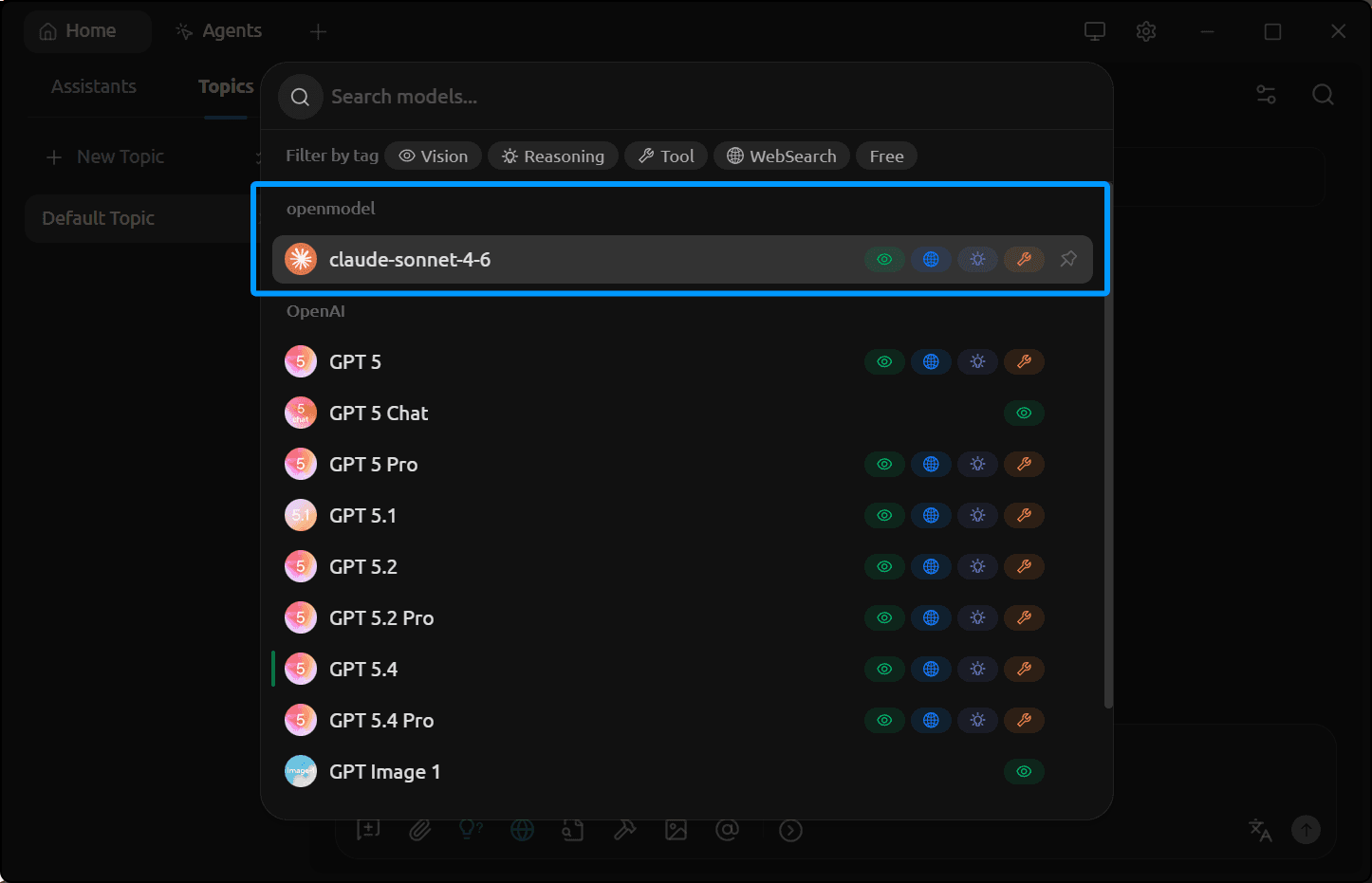
Select Your Model
In the model selection dropdown, find and click the model you configured in Step 5 (e.g., claude-sonnet-4-6). The model should appear under the OpenModel provider you added.
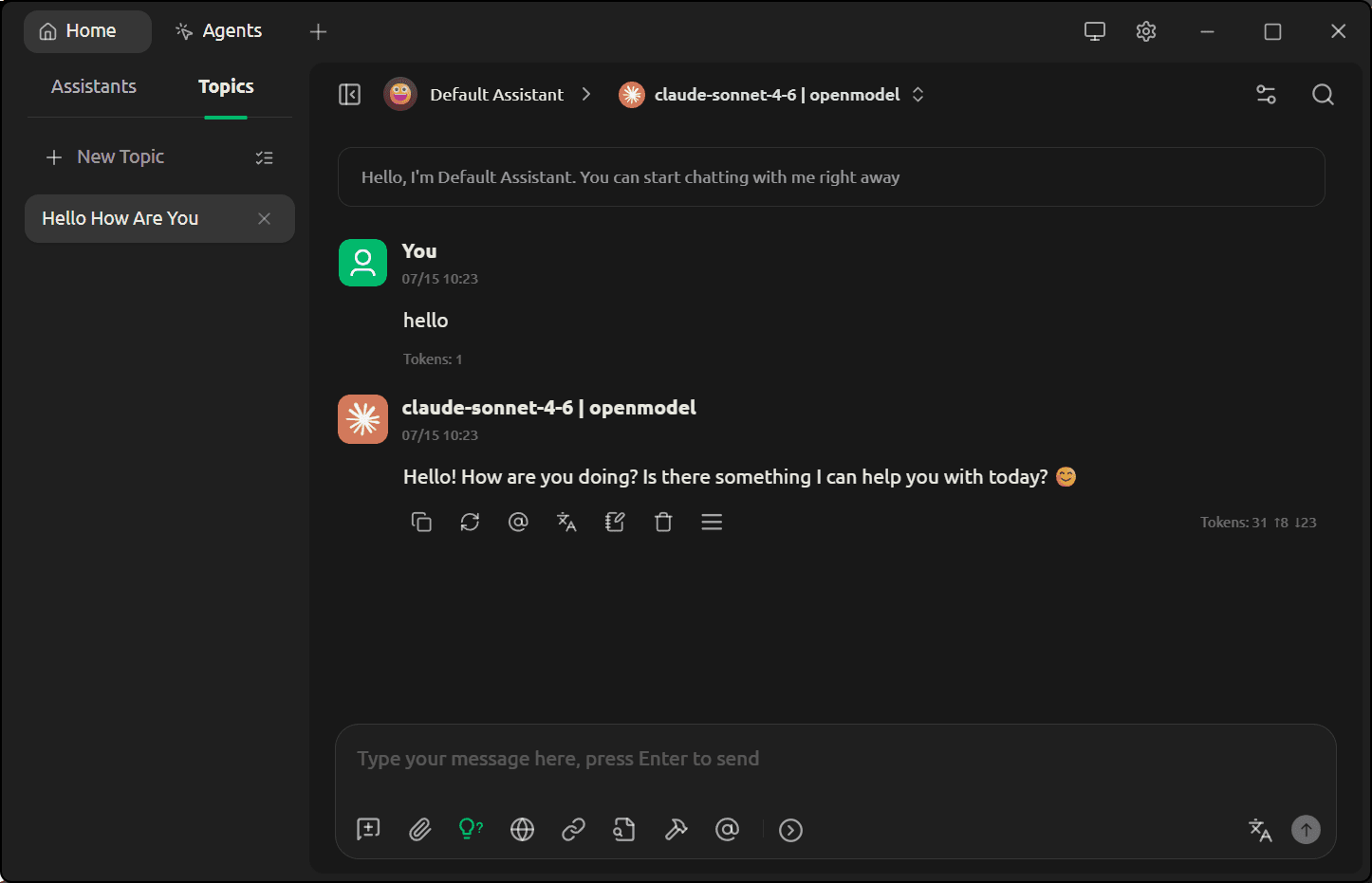
Verify Configuration
Send a test message to verify everything is working. Type something simple like "Hello, who are you?" and press Enter. If you receive a response from the model, your configuration is complete.
Troubleshooting
"Model not found" or empty response
- Make sure you added the model name correctly in Step 5. Model names must match exactly as listed on the Model Pricing. For example, use
claude-sonnet-4-6notclaude-4-sonnet. - Verify you chose the correct protocol for your model (OpenAI-Response for GPT models, Anthropic for Claude models).
"Request failed" or connection timeout
- Check your internet connection.
- Verify the API URL is
https://api.openmodel.aiwith no typos. - If you are behind a corporate firewall or proxy, ensure
api.openmodel.aiis not blocked.
WebSearch or capability-related errors
- Not all models support all capabilities. Go to the model's More Settings in Cherry Studio and uncheck capabilities like WebSearch that the model does not support.
- After changing settings, create a new conversation -- existing conversations may cache the old settings.
Model responds but output seems wrong or truncated
- Some models require specific parameter settings. Try adjusting
max_tokensortemperaturein the model's advanced settings within Cherry Studio. - Check your account's rate limits and billing status to ensure you have sufficient quota.
Want to use models from multiple providers?
You can add multiple OpenModel providers in Cherry Studio, each with a different protocol. For example:
- One provider with OpenAI-Response protocol for GPT models
- One provider with Anthropic protocol for Claude, DeepSeek, Kimi, and other models
This lets you switch between models from different providers within the same Cherry Studio interface.
Next Steps
- Available Models -- Browse all supported providers and model names
- Streaming -- Learn about streaming responses (Cherry Studio uses streaming by default)
- Rate Limits -- Understand usage limits and quotas
- LobeHub Integration -- Try another desktop AI client with OpenModel